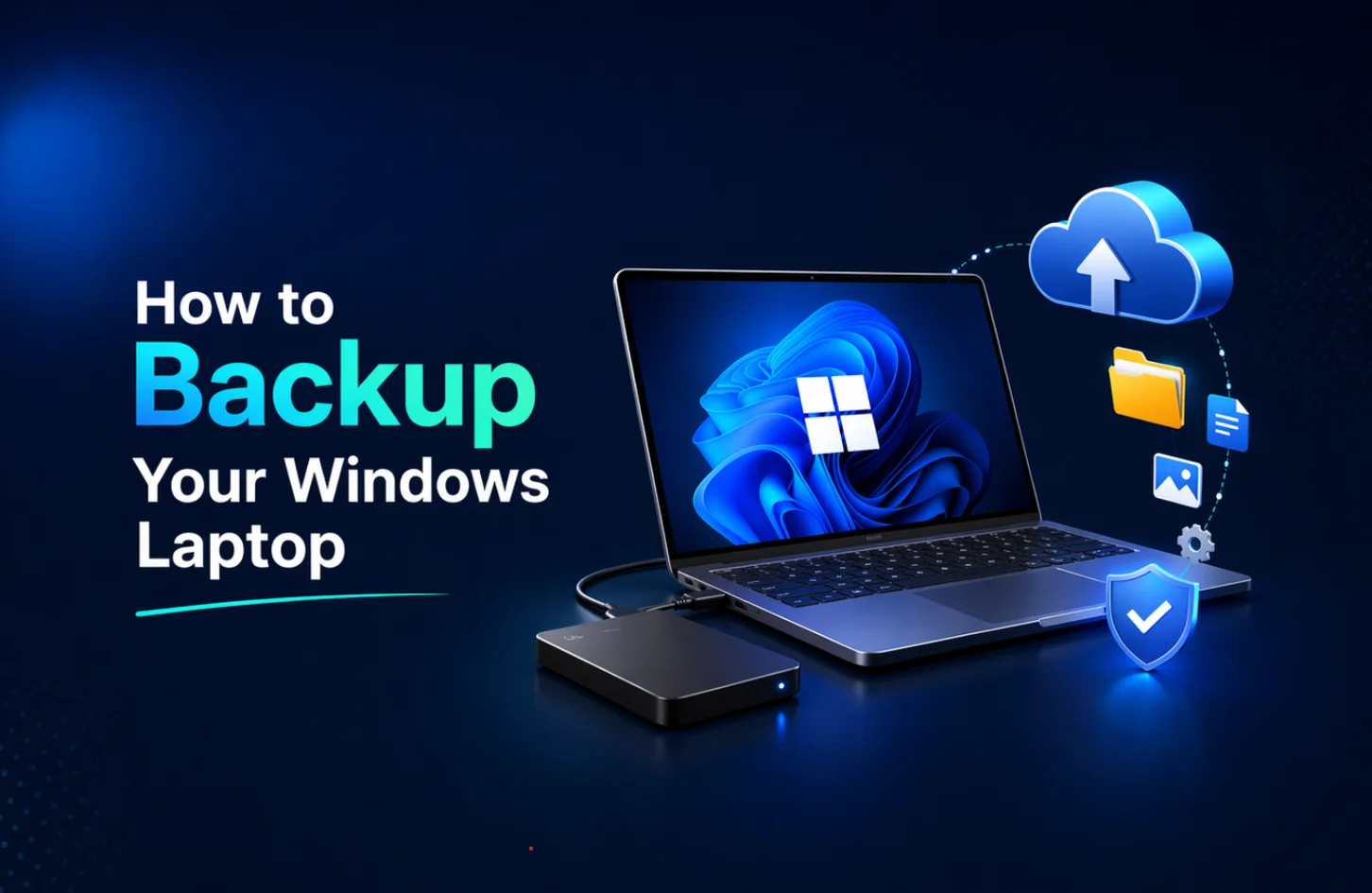
How to Backup Your Windows Laptop
Imagine waking up one morning, opening your laptop, and realizing your files are gone, photos, projects, assignments, everything. Scary, right? That’s why backing up your laptop is a must thing you should do. Between hardware failures, malware attacks, accidental deletions, and plain bad luck, data loss happens more often than we’d think. The good news is that backups can save the day. And, today we will tell you how to protect your Windows Laptop using hard drives and cloud storage. This way you will never have to worry about losing your data. So, why delay? Just scroll down.
What Does “Back Up” Actually Mean?
Alright, before jumping to the backup thing, let’s clarify a simple term: “ What does ‘Backup’ Actually Mean?” A backup is a copy of your data that is stored elsewhere. Many people get confused between syncing and backing up. Syncing means that you have the files on two devices, like your laptop and Google Drive. If you delete a file on your laptop it will also be deleted on Google Drive. A true backup is like a snapshot of your data that you can go back to if the original’s lost. Here are some common backup types:
- Full Backup: This is a copy of all your data.
- Incremental Backup: Only copies the data that has changed since the last backup. It’s fast and saves space.
- Differential Backup: Copies all data changed since the last full backup.
Different Ways to Back Up a Windows Laptop
Now, let’s have the real talk – backing up the Windows laptop –
External Storage (USB / Hard Drive)
You can plug in a hard drive or a solid-state drive. This is a one-time cost. You can keep your data safe at home. However, if you lose the drive, you will lose your data. So, make sure to keep it safe.
Built-in Windows Tools
Windows has tools like “File History” and “System Image” that are free and easy to use. That anyone can use without any worry.
Cloud Storage
Services like OneDrive or Dropbox can be used to store data. This way your data is safe even if your laptop is lost or damaged. However you may have to pay a fee for large amounts of storage space.
Third-Party Software
Tools like Acronis or EaseUS offer more advanced features, like better compression and easier scheduling, which are great for power users.
To know more about care of your laptops, you can read How To Take Proper Care Of Your Laptop
Step-by-Step Guides: How to Set Up Your Backups
Setting up a backup might sound technical, but Windows makes it fairly straightforward. Here are the three most effective ways to get your safety net running today.
1. Using Windows File History
File History is a way to regularly save your documents on your Windows Laptop.
- First connect your external hard drive.
- Go to Settings > Update & Security > Backup.
- Click Add a drive and select your external storage.
- Toggle Automatically back up my files to “On.”
- Click More options to choose how often you want to backup (e.g., every hour) and which folders to include.
2. Creating a Full System Image
A System Image is a snapshot of your Windows Laptop. If your hard drive dies, you can restore it to how it was.
- Open the Control Panel and navigate to Backup and Restore (Windows 7).
- On the left sidebar, click Create a system image.
- Choose your external drive as the destination.
- Confirm your settings and click Start backup.
3. Backing Up to the Cloud (OneDrive)
Since you’re using Windows, OneDrive is already built-in, making it a great choice for off-site protection.
- Sign in to OneDrive
- Open Settings → Backup tab
- Click Manage backup
- Select folders ( Desktop, Documents, Pictures)
- Now, flies sync automatically, and changes are updated in real-time
You can access it from anywhere, just open OneDrive on any device, log in, and access files instantly!
How Often Should You Backup Your Laptop?
It depends on how you use your laptop:
- Daily → If you work with important files regularly
- Weekly → Average users
- Monthly → Light users
Based on usage:
- Students → Weekly backup is enough
- Professionals → Daily or automated backups
- Content creators → Daily (or even real-time cloud backup)
Best Practices for Safe Backup
If you want to be truly bulletproof, you need to follow the 3-2-1 rule. It sounds like a secret code, but it’s actually the gold standard for data safety –
- 3 copies of data
- 2 different storage types
- 1 offsite (cloud)
This protects you from local disasters like a house fire or a break-in. By spreading your data across different locations and formats, you’re covered no matter what happens.
Common Mistakes to Avoid
Even with a backup plan, there are a few traps that catch people off guard. The most common is the “One and Done” trap, where you rely on a single external drive that stays plugged into your laptop 24/7. If a massive power surge hits your house, it could fry both your laptop and the backup drive simultaneously.
Another big one is the “No-Test Policy.” It’s easy to assume everything is fine, but you should occasionally try opening a few files from your backup just to make sure they aren’t corrupted.
Lastly, don’t ignore System Images. If you only backup your documents but forget the system image, you’ll be stuck spending an entire day reinstalling Windows and all your software from scratch if your drive fails.
Even to know perfectly you can also read When You Should Upgrade Your Laptop?
Wrapping Up
If all of this feels a bit overwhelming and you just want a simple plan to start today, here is the easiest way to do it. First, go out and grab a 1TB external hard drive, they are affordable and incredibly reliable. Plug it in and turn on Windows File History for your main folders. Second, use OneDrive (which is likely already on your laptop) for your absolute “can’t-live-without” files. This gives you a physical backup at home and a cloud backup for your most important work, covering your bases without needing a degree in computer science!
Don’t wait for something to go wrong. Set up your backup today and keep your data safe, always. And if you are thinking of buying a new laptop, you can visit Vertech for the best selection of laptops and expert advice.
FAQs
1. How do I backup my Windows laptop automatically?
You can enable the File History feature in your settings. It will run in the background whenever your drive is plugged in.
2. Is OneDrive enough for backup?
OneDrive is great for backing up your files. But it does not back up your apps or your Windows settings. You should use a drive to create a full system image.
3. What is the best backup method for Windows 10/11?
The best method is to use a combination of OneDrive for convenience and an external SSD for speed and security.
4. Can I backup without an external hard drive?
Yes you can use cloud services like Google Drive or Dropbox. You may run out of storage space quickly.
5. How long does a full backup take?
It depends on your data size, anywhere from minutes to several hours.